1Install
After you buy ViralBurst you get a download for your system. The installer sets everything up for you, including Python and ffmpeg, the video tool ViralBurst uses.
Windows
- Run the installer you downloaded (double-click it).
- Read and accept the License Agreement, Privacy Statement and Third-Party Notices pages.
- Wait for it to finish. It installs anything missing and gets the app ready. The first install downloads a few hundred MB, so give it several minutes. If it asks you to run it again (this can happen once, right after it installs Python), do that.
- Open ViralBurst from the new shortcut on your Desktop or in the Start Menu.
Linux
- Open a terminal in the folder where you saved
install_viralburst.sh. - Run
bash install_viralburst.shand accept the license pages. - Open ViralBurst from your applications menu, or run
~/viralburst/run.sh.
What hardware do I need? Making clips works fine on an ordinary computer. An NVIDIA graphics card (GPU) makes transcription and the AI much faster, but isn't required.
2Activate your license
- Find your license key in the email you got at checkout.
- Paste it into the box ViralBurst shows the first time it opens, then click Activate.
- That's it. ViralBurst checks the key briefly when it starts, then works offline.
Your license is active on one computer at a time. To move it to another computer, open Settings → Options → Deactivate this installation on the old one first, then activate on the new one.
3Your first clips
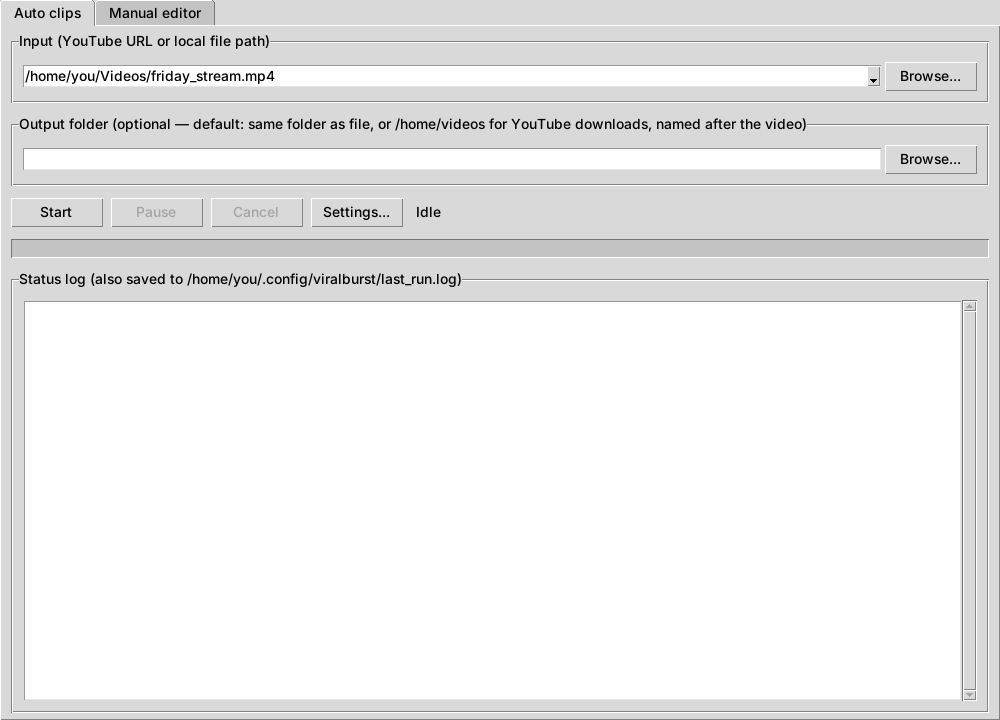
- Choose a video. Paste a YouTube link into the Input box, or click Browse... next to it and pick a video on your computer.
- Choose where the clips go (optional). Leave Output folder empty and ViralBurst makes a folder named after the video, next to the video file. For a YouTube link it goes in your Videos folder.
- Check the settings (optional). Click Settings... to turn on subtitles, the AI, music and more (see section 6). The defaults are a good start.
- Click Start. The status log shows each step: downloading (for YouTube), transcribing, the AI picking highlights (if on), then cutting and cropping clips.
- Open the output folder when the log says it's done. Your clips are waiting in the folders described in section 4.
Want highlights? They need a one-time AI model download. ViralBurst offers the right one for your computer when it opens; see section 7.
The first run is slower. ViralBurst downloads its speech-to-text model (a few hundred MB) the first time you transcribe, and GPU support files the first time you use an NVIDIA GPU. After that, everything runs offline.
4What you get
Inside the output folder:
shorts_916/Every talking part as its own 9:16 vertical clip, ready for TikTok, Shorts and Reels.
ai_highlights_916/The moments the AI picked as most worth posting, with subtitles. Only when AI Highlights is on.
stitched_full/The jump cut edit: the whole video with the silences cut out, plus any ad reads.
raw_clips/Each talking part, cut out in the original shape with nothing added.
ai_highlight_notes.txtWhy the AI picked each clip, with its scores and a suggested on-screen title.
ai_captions.txtA suggested title, caption and hashtags for every AI clip, if AI Captions is on.
transcript.txt / .srtEverything that was said, as text and as a subtitle file for the original video.
scenes.csvWhere each talking part starts and ends. Opens in any spreadsheet.
manifest.jsonA checkpoint so an interrupted run can pick up where it stopped. Leave it alone.
5Manual editor
Want a clip the automatic run didn't make? The Manual editor tab on the main window lets you cut clips by hand while the video plays.
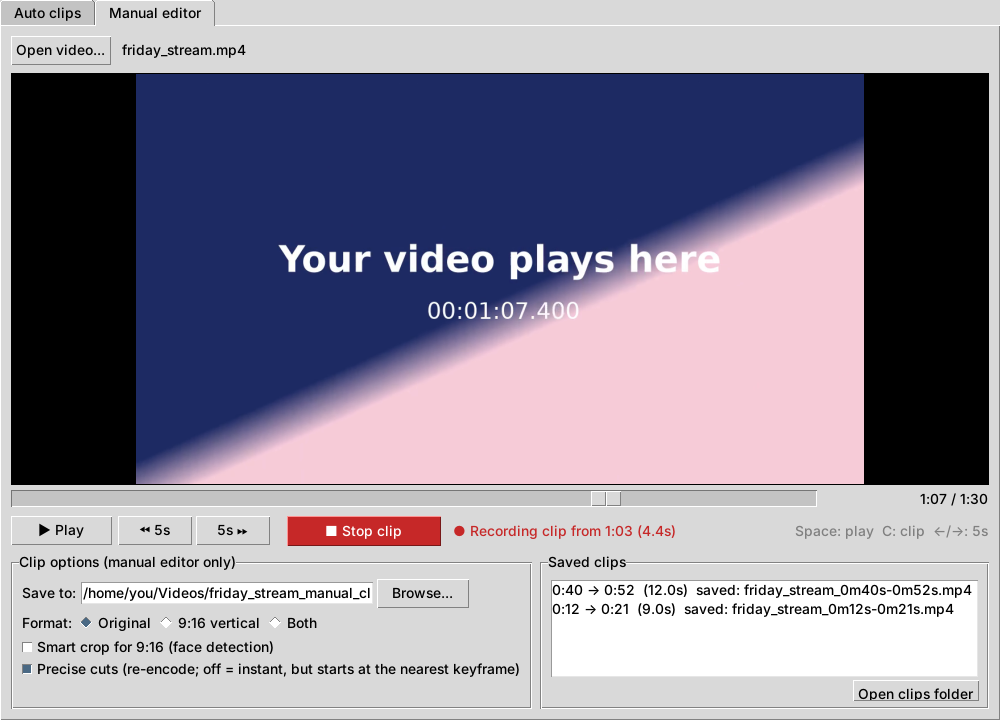
- Click Open video... and pick a video.
- Find the start of your clip. Click ▶ Play, drag the slider, or jump 5 seconds with the ⏪ 5s and 5s ⏩ buttons.
- Click ● Start clip (or press C) where the clip should begin. The button turns red and says ■ Stop clip.
- Click ■ Stop clip (or press C again) where it should end. The clip is saved right away and appears under Saved clips.
- Repeat for as many clips as you like, then click Open clips folder to see them.
It works while playing or paused, so you can also pause, drag to the start, Start clip, drag to the end, Stop clip. Keys: Space play/pause, C start/stop clip, ←/→ jump 5 seconds.
| Option | What it does |
|---|---|
| Save to | The folder your hand-made clips go in. It starts as a <video name>_manual_clips folder next to the video; click Browse... to change it. |
| Format | Original keeps the video's own shape. 9:16 vertical crops it tall for Shorts/TikTok/Reels. Both saves each clip twice, once in each shape. |
| Smart crop for 9:16 | For vertical clips, follows the speaker's face instead of cropping the middle of the frame. |
| Precise cuts | On: the clip starts and ends exactly where you clicked (takes a few seconds to save). Off: saves instantly, but may start a second or two early. |
The Manual editor has its own options. Settings like subtitles, music and the censor only apply to the automatic run.
6Settings, tab by tab
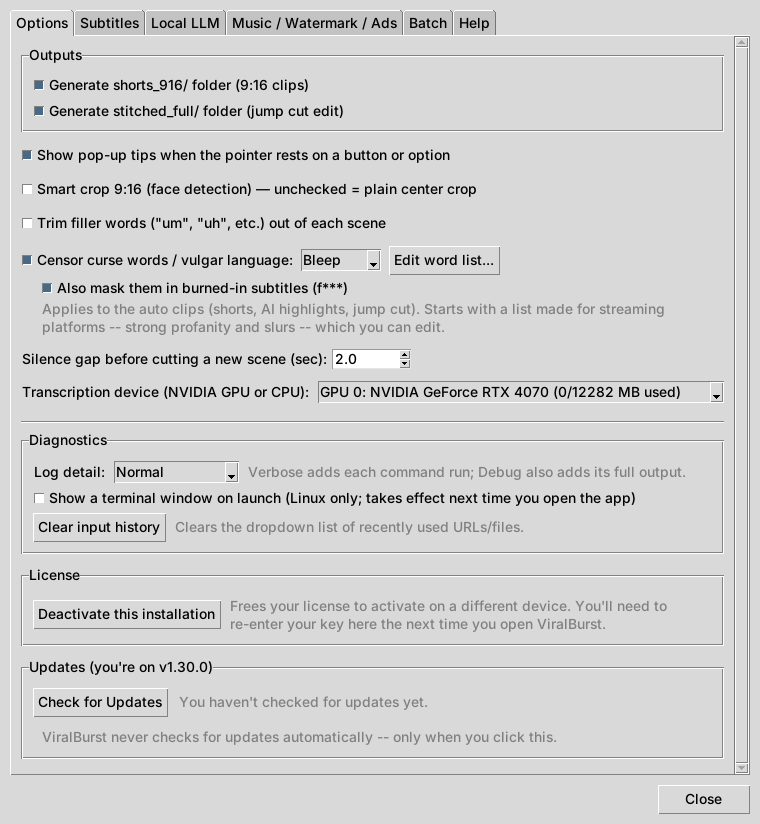
Click Settings... on the main window. Settings are saved automatically and remembered next time. Close the window with Close. Many options are grey until you tick the box that turns their feature on.
Options
| Option | What it does |
|---|---|
| Generate shorts_916/ | Cuts every talking part into its own 9:16 vertical clip. On by default. |
| Generate stitched_full/ | Makes the jump cut edit: the whole video with the silences removed. On by default. At least one of these two, or AI Highlights, must be on. |
| Show pop-up tips | Shows a short explanation when you rest the pointer on a button or option. Untick to turn tips off everywhere. See section 8. |
| Smart crop 9:16 | Follows the speaker's face when cropping to vertical, instead of always cropping the middle. A little slower, and the first use downloads a small face-detection model. |
| Trim filler words | Cuts "um", "uh" and similar filler words out of the middle of sentences, not just the pauses between them. |
| Censor curse words | Bleeps or mutes swear words and slurs in the shorts, AI highlights and jump cut edit, so clips are safe for platforms that age-restrict or demonetize them. Pick Bleep (a tone) or Mute (silence) in the box next to it. |
| Edit word list... | Opens the list of censored words (see below). |
| Also mask them in burned-in subtitles | Shows censored words with stars in the subtitles too. The transcript files keep the real words. |
| Silence gap before cutting a new scene | How long a pause must be (in seconds) before the video is split there. Lower makes more, shorter clips. Higher makes fewer, longer clips. 2.0 is a good start. |
| Transcription device | What turns speech into text: your NVIDIA GPU (much faster) or the CPU. The first time you pick a GPU, a few hundred MB of GPU support files download. |
| Diagnostics | |
| Log detail | How much the status log shows. Normal for everyday use. Verbose and Debug add detail when troubleshooting or asking for help. |
| Show a terminal window on launch | Linux only. Also opens a terminal with the app's raw output. Takes effect next time you open ViralBurst. |
| Clear input history | Empties the list of recent videos in the Input box. |
| License and updates | |
| Deactivate this installation | Frees your license so you can activate it on another computer. ViralBurst closes afterwards. |
| Check for Updates | Checks whether a newer version is out. ViralBurst never checks on its own, only when you click this. |
The censored word list
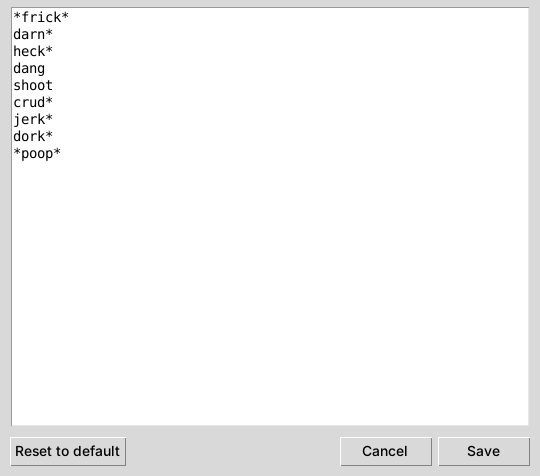
- Put one word per line. Capitals and punctuation don't matter.
- A * matches anything:
*frick*also catches "fricking". A word without a * must match exactly, so a short word won't accidentally hit a longer one. - Click Save to keep your changes, or Reset to default to get the original list back.
- Changed the list or the censor style? Run the same video again and its clips are re-cut automatically.
Subtitles
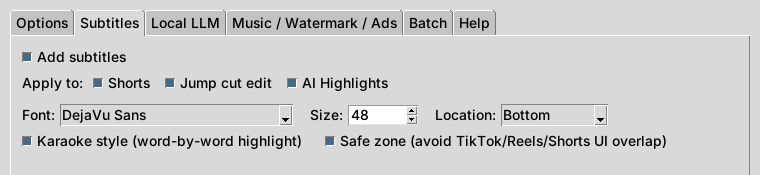
| Option | What it does |
|---|---|
| Add subtitles | Burns captions of what's said into the video. Tick this first; the options below stay grey until you do. |
| Apply to | Which outputs get subtitles: Shorts, the Jump cut edit and/or AI Highlights. Each one is separate, for example subtitles on shorts but not on the long edit. |
| Font | The typeface of the subtitles. |
| Size | How big the text is. 48 suits vertical video. |
| Location | Top, middle or bottom of the screen. |
| Karaoke style | Lights up each word as it's spoken, instead of a plain line of text. |
| Safe zone | Keeps subtitles clear of the buttons and captions TikTok, Reels and Shorts put on top of videos. |
Local LLM (the AI)
This is where you set up AI Highlights: a local AI model that reads the transcript, watches the video and picks the moments most worth posting. It runs entirely on your computer and is off until you turn it on. First time? Follow section 7.
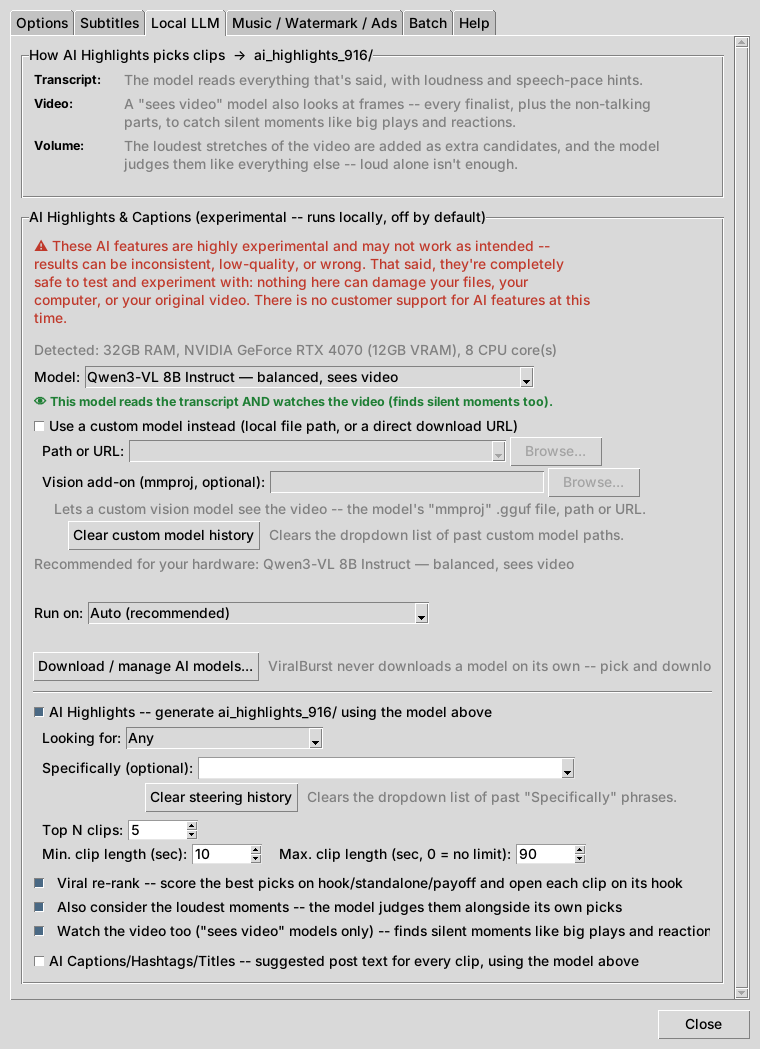
The AI features are experimental: results can vary from video to video and model to model. They can't harm your files or your original video; the worst case is a poor or empty pick.
| Option | What it does |
|---|---|
| Choosing a model | |
| Model | Which downloaded model picks the clips. Only downloaded models are listed. Bigger models choose better but are slower and need more memory. The line under it says whether the model can watch the video. |
| Use a custom model instead | For advanced users: point ViralBurst at your own GGUF model file, or a direct download link, instead of one from the list. |
| Path or URL | The custom model's .gguf file, or a link to download it. Browse... picks a file. |
| Vision add-on (mmproj) | The custom model's "mmproj" file, if it has one. Lets it look at the video, not just read the transcript. |
| Clear custom model history | Empties the list of custom models you've used. |
| Run on | Which graphics card runs the AI. Auto suits most people. CPU only works without a GPU but is slow. With two or more GPUs, split across them fits bigger models, and in parallel is fastest when the model fits on each card. |
| Download / manage AI models... | Downloads a model before first use, or deletes ones you don't need. See section 7. |
| AI Highlights | |
| AI Highlights | Turns the feature on. Right after transcription, the AI picks its best moments and cuts them into ai_highlights_916/ with subtitles, before the rest of the run. |
| Looking for | The kind of moment to find: Any, Viral (Shorts/TikTok), Funny, Dramatic/Action, Emotional or Key Insight/Quote. |
| Specifically (optional) | Describe what you want in your own words, e.g. "moments where he fails a jump". Leave it empty to just use "Looking for". |
| Clear steering history | Empties the list of past "Specifically" phrases. |
| Top N clips | The most clips the AI should make. |
| Min. / Max. clip length | The shortest and longest clip allowed, in seconds. Max 0 means no limit. |
| Viral re-rank | The AI compares its best picks side by side and scores them on hook, payoff and shareability, and can trim a slow start so the clip opens on its hook. Better clips, a little slower. On by default. |
| Also consider the loudest moments | Hands the loudest stretches of the video to the AI as extra candidates. It still judges them, so loud alone isn't enough. On by default. |
| Watch the video too | Lets the AI look at frames from the video, so it catches moments with no talking, like a big play or a reaction. On by default. |
| AI Captions/Hashtags/Titles | Writes a suggested title, caption and hashtags for every AI clip into ai_captions.txt. Needs AI Highlights on. |
Music / Watermark / Ads
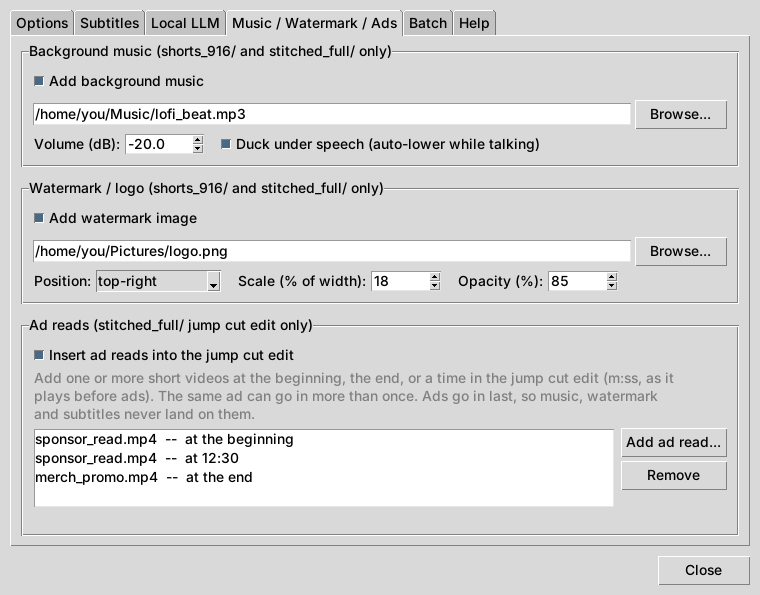
| Option | What it does |
|---|---|
| Background music (shorts and jump cut edit) | |
| Add background music | Plays a music track under the video. Pick the file with Browse... (mp3, wav, m4a and similar). |
| Volume (dB) | How loud the music is. -20 sits nicely under speech; closer to 0 is louder. |
| Duck under speech | Turns the music down automatically while someone talks, and back up in the pauses. |
| Watermark / logo (shorts and jump cut edit) | |
| Add watermark image | Puts your logo on the video. A PNG with a see-through background looks best. |
| Position | Which corner, or the center. |
| Scale (% of width) | How big the logo is, as a share of the video's width. |
| Opacity (%) | How solid the logo is. Lower is more see-through. |
| Ad reads (jump cut edit only) | |
| Insert ad reads into the jump cut edit | Splices sponsor spots or ads into the long edit. They're never added to the short clips. |
| Add ad read... | Adds an ad video and where it goes (see below). Add the same video again to play it in more than one spot. |
| Remove | Takes the selected ad out of the list. |
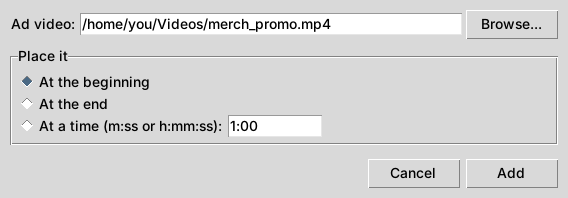
- Click Add ad read...
- Pick the ad video with Browse...
- Choose where it goes: at the beginning, at the end, or at a time like
12:30. Times count through the jump cut edit as it plays before any ads go in. - Click Add. Ads at the same spot play in list order. Ads are added last, so music, watermark and subtitles never cover them. An ad with a different shape is fitted with black bars.
Batch
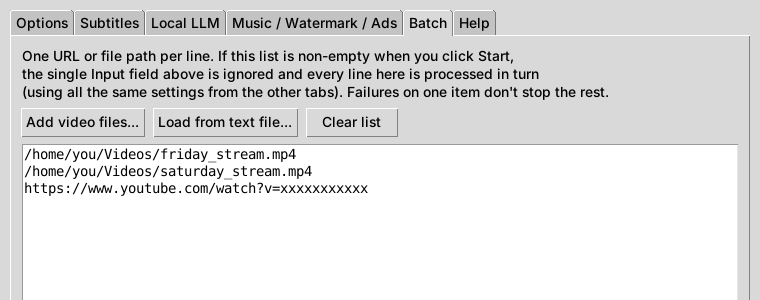
Process several videos one after another with the same settings, for example overnight.
| Option | What it does |
|---|---|
| The list | One video per line: a file path or a YouTube link. You can type or paste into it. When the list isn't empty, Start processes it instead of the Input box. |
| Add video files... | Adds video files from your computer. |
| Load from text file... | Fills the list from a text file with one link or path per line. |
| Clear list | Empties the list, so Start uses the Input box again. |
If one video fails, the rest still run.
Help
The full built-in help text, available offline. It covers the same ground as this page in more detail.
7Getting the AI model
Highlights are picked by a local AI model, so you need one downloaded before ViralBurst can make them. It's a one-time download, and ViralBurst never downloads a model without asking.
The easy way: when ViralBurst opens
If you don't have a model yet, ViralBurst offers one when it starts. It looks at your graphics card's memory (VRAM) and RAM and suggests the best model that fits.
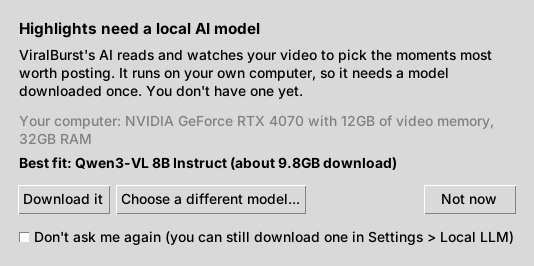
- Download it downloads the suggested model in the background. When it finishes, ViralBurst selects it and turns AI Highlights on. Your next run makes highlights.
- Choose a different model... opens the model list (below) so you can pick another, for example a smaller one.
- Not now closes the window. It asks again next time, unless you tick Don't ask me again.
Also, if you click Start with AI Highlights on but its model isn't downloaded, ViralBurst offers to download it first. Say no and the run goes ahead without highlights.
Or choose a model yourself
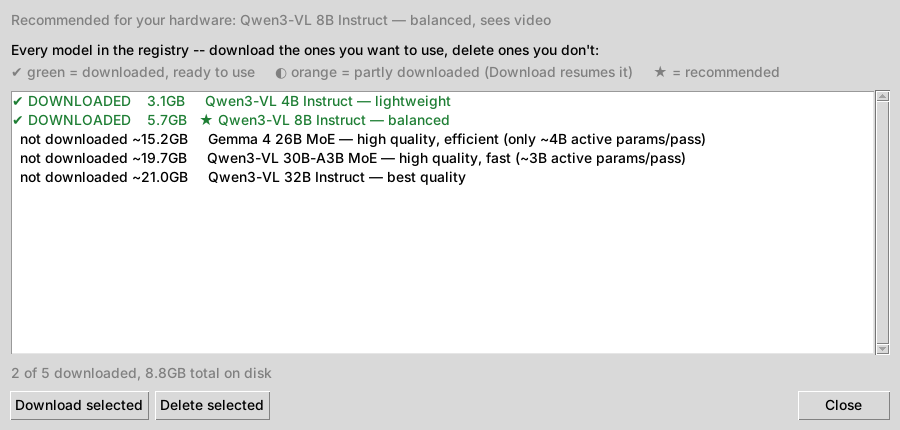
- Open Settings → Local LLM.
- Click Download / manage AI models...
- Pick a model in the list. Start with the one marked ★ (recommended for your hardware). The smallest, Qwen3-VL 4B, works on most computers.
- Click Download selected and wait. Models are several GB, so this can take a while. You can close the window and it keeps downloading; if the connection drops, Download picks up where it left off.
- Close the window and choose the model in the Model box.
- Tick AI Highlights and set Looking for and Top N clips.
- Click Start on the main window. The AI step runs right after transcription. Look in
ai_highlights_916/for the clips andai_highlight_notes.txtfor why each was picked.
Which model? Larger models pick better clips but need more memory and time. With an NVIDIA GPU, pick the biggest that fits its memory. Without one, stick to the 4B model and expect it to be slow.
8Pop-up tips
Not sure what something does? Rest the pointer on any button or option for a moment and a short explanation pops up.
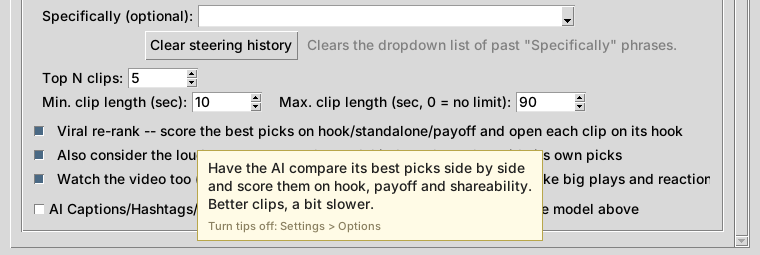
To turn tips off: open Settings → Options and untick Show pop-up tips when the pointer rests on a button or option. Tick it again any time to bring them back.
9Pause, cancel and resume
- Pause waits for the current step to finish, then holds. Click Resume to carry on.
- Cancel stops the run and asks whether to delete the partial results or keep them.
- Resume after a crash or cancel: keep the partial results, then start the same video again. ViralBurst picks up from the last finished step instead of starting over.
- Want a completely fresh run? Delete that video's output folder (or just
manifest.jsoninside it) and start again.
10Troubleshooting
The app seems to do nothing the first time
The first run downloads its speech-to-text model, and GPU files if you picked a GPU. That can take a few minutes. The status log shows what it's doing.
Few or no clips came out
Usually the video has little clear speech (music only, heavy background noise, very quiet audio). Open transcript.txt to see what was heard. Lowering Silence gap on the Options tab makes more, shorter clips. For moments without talking, turn on AI Highlights with Watch the video too.
I picked my GPU but it's slow, or there's a GPU error
ViralBurst supports NVIDIA GPUs only. The first time you pick one it downloads GPU support files; let that finish. If it keeps failing, choose CPU on the Options tab. Everything still works, just slower.
The AI step was skipped or made no clips
Check that a model is downloaded and chosen in the Model box (Settings → Local LLM). The status log says why the AI step was skipped or what went wrong. If a big model is very slow or fails to load, try a smaller one, or set Run on to Auto. ai_highlight_notes.txt shows everything the AI considered.
A YouTube link won't download
Check the link opens in your browser and the video isn't private or members-only. Or download the video yourself and use Browse... to pick the file.
If the log mentions a security certificate ("CERTIFICATE_VERIFY_FAILED"), something between your computer and YouTube is checking secure connections: usually antivirus "HTTPS scanning" or "web shield", a company or school network filter, or a VPN. ViralBurst already retries with a second set of certificates; if that fails too, turn the scanning off for a moment, or download the video in your browser and use Browse...
The Manual editor plays without sound
Sound in the Manual editor uses ffplay, which comes with ffmpeg. If it isn't found, the tab says so and plays silently. Saved clips still have their sound.
The installer stopped with an error
The installer saves a log to viralburst_install_log.txt in your user folder (C:\Users\your name). The .bat installer also saves pip's details to viralburst_install_pip_log.txt next to it. On Linux it's ~/viralburst_install.log. Attach the log when you ask for help on the forum or by email.
Where's the log file?
The status log is also saved to a file. Its location is shown above the log on the main window. Set Log detail to Verbose or Debug on the Options tab before reproducing a problem, then attach the log when asking for help.
11Still stuck?
Ask on the community forum, where other users and the developer can help, or email us. Say what you tried, what happened, and paste any error text from the status log.